| DBAmon |
|
|
Home |
Index/DBAmon Doc. |
|
|
If you have any problems with this checklist, please
Request Support. Your feedback makes DBAmon a better product.
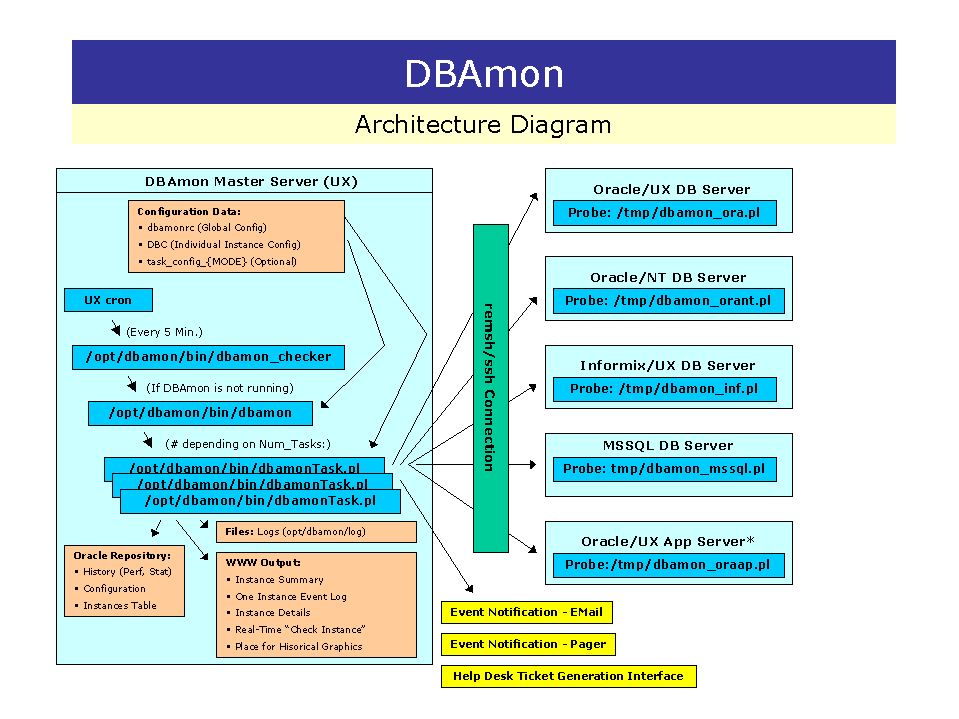
Take a minute to begin to familiarize yourself with the DBAmon Architecture Diagram. It briefly speaks to DBAmon input/output and process flow. One concept that you will have to be familiar with is that of a Master Server. This is the server where the DBAmon software will reside. This Master server will reach out to monitor DBMS instances that reside on other servers.
It is far perferable to use a GENERIC, or SERVICE ID than to use an individual's ID to run DBAmon, on the MASTER or TARGET server. You CAN use the same userid on the MASTER and TARGET servers to run DBAmon.
Some planning should now be done. You need to decide:
You WILL have problems if you use 1 userid to install the DBAmon MASTER software on the MASTER server, and then change to use a different userid on that server later.
It is allowed to have a different userid running the MASTER DBAmon software than the userid running COPSSH on the TARGET server, but you have to consistenly use the same ID on any one server. The same is true for targets - use the SAME userid to install Perl, COPSSH and to configure COPSSH. Using SHIFT+RIGHT-CLICK+"Run As" is a good way to do this. Again, it is very important to use the DBAmon TARGET userid to run the COPSSH "Add User" dialog. Everything on the TARGET server must be done with the same userid (by either logging in as that user, or by using "Run As" as shown above).
Download the software if you haven't already. It is packaged as a gzip'd "TGZ" tar file about 280K in size. Go to https://github.com/bbcolo22/DBAmon and download the most recent version. Save the file on the MASTER server.
Download the setup-x86.exe program from CYGWIN . Note that we are intentionally going to use the 32-bit version of Cygwin, even though you may be installing Cygwin onto your DBAmon Master server that is running a 64-bit version of Windows. This is not a problem. This program is used to install CYGWIN onto your DBAmon MASTER server. Download the current version from cygwin.com/setup-x86.exe to your wherever you save downloads. We will come back to this later.
Execute the downloaded setup-x86.exe program from the folder that you used for the download above. Answer the prompts:
Copy the setup-x86.exe program that you used in the previous step to C:\cygwin . You will need this later.
You will need a few optional CYGWIN packages. To install them:
Repeat the prior step to add the packages:
Start a CYGWIN window from the icon created on the desktop. This will be the environment under which DBAmon will run. You can now set the terminal defaults (color, window size, font, etc.). I use raster 7x12, text color 100,120,250. Yada yada.
Using the "vi" editor, you need to add these commands to the end of ~/.bashrc:
echo ".bashrc Starting" alias df='df -h' alias du='du -h' alias ls="ls -CF --color" alias ll='ls -l' alias la='ls -A' alias cdd='cd /opt/dbamon' alias ps='dbamon_ps' set -o vi export PATH=$PATH:.:/opt/dbamon/bin:/usr/sbin:~/bin echo ".bashrc Done"o |
Now exit from CYGWIN and get back in. You should see: .bashrc Done
In the CYGWIN window:
cd ~ cpan yes (allow CPAN to do initial configuration) install DBI (this will take about 20 minutes -- make sure there are no error messages and that the final tests are OK) install DBD::ODBC (this will take about 15 minutes -- make sure there are no error messages and that the final tests are OK) install Devel::Size exit |
Your CYGWIN and Perl installations are now ready to use.
All of these steps will be executed in the CYGWIN environment.
Run:
mkdir -p /opt/dbamon cd /opt/dbamon cp /cygdrive/c/temp/dbamon.tgz . gunzip dbamon.tgz tar -xvf dbamon.tar |
DBAmon is now installed into your new CYGWIN environment.
Run:
ln -s /usr/bin/perl /usr/local/bin/perl |
Run:
cd /opt/dbamon/bin mkdir /opt/dbamon/log ./dbamon_install |
Follow the prompts. Yes, you do want to copy the CGI scripts to the default directory that is coded into this script.
Now, choose which SQL Server instance (it must be running at least SQL 2008R2) which is to contain your DBAmon Repository. We will code that into the dbamonrc file, which is used to specify DBAmon Global Parameters. Run:
cd /opt/dbamon/adm cp dbamonrc.TEMPLATE dbamonrc |
Now, edit the dbamonrc file. At a minimum, you need to now specify these parameters (these are example values):
Copy SQL from /opt/dbamon/sql_mssql/create_dbamon_database.sql and paste into SSMS for the instance that you chose in the previous step to use as the DBAmon REPOSITORY instance. Run this SQL to create the database now. Verify that it was created successfully.
Run dbamon_test_DBI (it resides in /opt/dbamon/bin, but that should be in your PATH since you changed the .bashrc to make PATH include /opt/dbamon/bin). You should see something like:
$ dbamon_test_DBI
2011/01/15-22:33:40 dbamon_test_DBI [_1716] | Connecting to MSSQL Repository - mssql_instance=localhost\SQL2005 DSN=driver={SQL Server};Server=localhost\SQL2005;uid=;pwd=;
2011/01/15-22:33:41 dbamon_test_DBI [_1716] | Connected OK
2011/01/15-22:33:41 dbamon_test_DBI [_1716] | Running sql: select name from master.dbo.sysdatabases order by 1
2011/01/15-22:33:41 dbamon_test_DBI [_1716] |   Found database name=dbamon
2011/01/15-22:33:41 dbamon_test_DBI [_1716] |   Found database name=master
2011/01/15-22:33:41 dbamon_test_DBI [_1716] |   Found database name=model
2011/01/15-22:33:41 dbamon_test_DBI [_1716] |   Found database name=msdb
2011/01/15-22:33:41 dbamon_test_DBI [_1716] |   Found database name=tempdb
2011/01/15-22:33:41 dbamon_test_DBI [_1716] | Done
|
Make sure that you see ALL of the DBs in this SQL instance. If this looks correct, then you have successfully installed the correct Perl and ODBC modules for accessing the DB. If it did not work, start Googling the error message. :@)
In CYGWIN, run: cron-config
Answer the prompts for cron-config as follows:
 $ cron-config
Enter password of user `xx\dbmsmonitor':
Reenter, please:
Do you want to install the cron daemon as a service? (yes/no) yes
Enter the value of CYGWIN for the daemon: [ ] ntsec

You must decide under what account the cron daemon will run.
If you are the only user on this machine, the daemon can run as yourself.
   This gives access to all network drives but only allows you as user.
To run multiple users, cron must change user context without knowing
  the passwords. There are three methods to do that, as explained in
  http://cygwin.com/cygwin-ug-net/ntsec.html#ntsec-nopasswd1
If all the cron users have executed "passwd -R" (see man passwd),
  which provides access to network drives, or if you are using the
  cyglsa package, then cron should run under the local system account.
Otherwise you need to have or to create a privileged account.
  This script will help you do so.
Do you want the cron daemon to run as yourself? (yes/no) yes

Please enter the password for user 'dbmsmonitor':
Reenter:
Running cron_diagnose ...
WARNING: You do not currently have a crontab file.

... no problem found.

Do you want to start the cron daemon as a service now? (yes/no) yes
OK. The cron daemon is now running.

In case of problem, examine the log file for cron,
/var/log/cron.log, and the Windows event log (using /usr/bin/cronevents)
for information about the problem cron is having.

Examine also any cron.log file in the HOME directory
(or the file specified in MAILTO) and cron related files in /tmp.

If you cannot fix the problem, then report it to cygwin@cygwin.com.
Please run the script /usr/bin/cronbug and ATTACH its output
(the file cronbug.txt) to your e-mail.

WARNING: PATH may be set differently under cron than in interactive shells.
         Names such as "find" and "date" may refer to Windows programs.
|
To verify that the service was created (with AUTOMATIC STARTUP) and are running go to WINDOWS SERVICES to ensure that Cron daemon is defined and STARTED.
We will be using CYGSERVER, because it is required by APACHE2.
In CYWGIN, run: cygserver-config
You should see something like:
$ cygserver-config Overwrite existing /etc/cygserver.conf file? (yes/no) yes Generating /etc/cygserver.conf file Further configuration options are available by editing the configuration file /etc/cygserver.conf. Please read the inline information in that file carefully. The best option for the start is to just leave it alone. Basic Cygserver configuration finished. Have fun! |
Now look in WINDOWS SERVICES. You should see "CYGWIN cygserver". Start it if it isn't already STARTED.
First, edit the script dbamon_setup_apache2 in /opt/dbamon/bin. Change the <USER> string to the user that you are now using (DOMAIN\\USER) and save the script.
Run dbamon_setup_apache2 and answer all prompts. To verify that the services were created (with AUTOMATIC STARTUP) and are running go to WINDOWS SERVICES to ensure that CYGWIN Apache2 is defined and STARTED. If it won't start correctly now, we will deal with that in a few steps (I will show you how to diagnose APACHE2 problems).
First, configure the email software. Edit /etc/email/email.conf to use YOUR SMTP server. Specify the SMTP_SERVER parameter in this file to specify your SMTP server hostname. Now, test email by sending an email to your self from the CYGWIN environment. From the CYGWIN shell, run:
echo 'test' | dbamon_mailer -s 'test abc' your-email-address
Ensure that you receive the email at the destination.
Run:
dbamon_ps
The output should look something like this (the process names could be different):
$ dbamon_ps USER PID PPID S TT %CPU SZ START ELAPSED TIME COMMAND COMMAND 36294 4364 1 S ? 0.0 839 Jan15 21:21:51 00:00:00 cygrunsrv /usr/bin/cygrunsrv 36294 5424 4364 S ? 0.0 1191 Jan15 21:21:51 00:00:00 httpd /usr/sbin/httpd -F -D NO_DETACH 36294 3636 5424 R ? 0.0 1106 Jan15 21:21:49 00:00:00 httpd /usr/sbin/httpd -F -D NO_DETACH 36294 4900 5424 S ? 0.0 1106 Jan15 21:21:49 00:00:00 httpd /usr/sbin/httpd -F -D NO_DETACH 36294 4176 5424 S ? 0.0 1106 Jan15 21:21:49 00:00:00 httpd /usr/sbin/httpd -F -D NO_DETACH 36294 4372 5424 S ? 0.0 1106 Jan15 21:21:49 00:00:00 httpd /usr/sbin/httpd -F -D NO_DETACH 36294 5160 1 S ? 0.0 839 Jan15 21:20:13 00:00:00 cygrunsrv /usr/bin/cygrunsrv 36294 2820 5160 S ? 0.0 715 Jan15 21:20:13 00:00:01 cron /usr/sbin/cron -n 36294 4408 1 S tty0 0.0 1087 19:53 18:13 00:00:00 bash bash --login -i 36294 5428 5424 S ? 0.0 1106 20:04 07:11 00:00:00 httpd /usr/sbin/httpd -F -D NO_DETACH 36294 5704 4408 S tty0 1.8 880 20:11 00:06 00:00:00 perl /usr/bin/perl /opt/dbamon/bin/dbamon_ps 36294 1764 5704 R tty0 0.9 875 20:11 00:05 00:00:00 procps /usr/bin/procps -eao user,pid,ppid,state,tty,%cpu,sz,start_time,etime,time,comm,args |
Now, verify Apache2. Since you previously verified that the "CYGWIN cygserver" and the "CYGWIN Apache" services are running, verify that you can connect to APACHE2. Note that APACHE2 will only work correctly if CYGSERVER is installed and running as a service. In an IE browser windows (you can also use Chrome, etc.), simply connect to this this host. For example, enter a URL of http://localhost . You should see a default Apache screen with the Apache logo at the bottom of the screen.
If the APACHE2 service won't start (dies when you attempt to start it), or you cannot connect using your browser, there is a log file which you will find very helpful. "cd" to /var/log/apache2 and look at the error_log file. This file will contain all startup and connection error messages. The WINDOWS Event Viewer Application Log also will contain some helpful error messages. If you're having trouble, Google away the errors that you find.
CRON is a oldie-but-goodie UX-based task scheduling tool. We will now create a test cron entry which will simply create a test file in the /tmp directory:
crontab -e (a VI window will be displayed - Enter this one line into the file:) * * * * * /bin/touch /tmp/dbamontestfile.txt (Now :wq) |
After a few minutes you should see that a file named dbamontestfile.txt exists in the /tmp directory.
If you find that cron is NOT working, there are a few good log files to look at:
Start Googling!
Run:
ln -s /opt/dbamon/htm /srv/www/htdocs/dbamon
This will make it possible for you to navigate to http://localhost/dbamon and arrive at the DBAmon Console page.
Also, edit (actually vi) /etc/apache2/httpd.conf to set these parameters:
Now that you have configured APACHE2 to follow symlinks, you should be able to navigate to the DBAmon Console page.
In your browser, navigate to http://localhost/dbamon
You should see the DBAmon Console page and no errors. If you do not, then look again at the APACHE2 error logs (see above).
The DBAmon CGI Perl scripts that shipped with DBAmon now need to be copied to your APACHE2 CGI scripts directory. Note that this also must be done any time that you upgrade DBAmon.
Run: dbamon_upgrade
The dbamon_upgrade script will copy the CGI scripts to the proper APACHE2 directory. Since you are using APACHE2, ensure that the script is copying to the "srv" APACHE2 directory (it should figure this out by default). You may have to enter srv at the first prompt. You will then have to press ENTER to continue after you have verified that they're being copied to the correct location.
First, cd to your home directory in CYGWIN. Run ssh-keygen. Follow this dialogue:
$ ssh-keygen -t dsa Generating public/private dsa key pair. Enter file in which to save the key (/home/dbmsmonitor/.ssh/id_dsa): Created directory '/home/dbmsmonitor/.ssh'. Enter passphrase (empty for no passphrase): Enter same passphrase again: Your identification has been saved in /home/dbmsmonitor/.ssh/id_dsa. Your public key has been saved in /home/dbmsmonitor/.ssh/id_dsa.pub. The key fingerprint is: (the hex key) dbmsmonitor@THESERVER The key's randomart image is: +--[ DSA 1024]----+ (a pretty little picture) |
This master SSH key that you just created will be used for ALL subsequent DBAmon "TARGET Server" installations. You'll see... ;o)
You now need to install the software and configure the Master and the first database instances that you will be monitoring. See: TARGET Configuration (For MSSQL Target) .
DBAmon User Exits are the way to configure DBAmon to function in your environment. For example, you would configure a User Exit to have DBAmon create a ticket for your Help Desk call tracking system. See: DBAmon UserExist Customization .
DBC files reside in:
A DBC file specifies the parameters that DBAmon will use to monitor 1 database instance. There is 1 .dbc file in /opt/dbamon/adm/instances for every DB instance that you wish to monitor. Any file with the ".dbc" suffix will be read by DBAmon to monitor 1 database instance. There are TEMPLATE* files in /opt/dbamon/instance; one for each DB type that you will be monitoring. To get started, say for example that you will be monitoring an Oracle DB named SID1 on server myserver. Run:
See: dbc Customization for information on how to customize DBC files.
To test your installation, we are going to run "DBAmon Test Mode". To do this, logged into the Master Server as userid dbamon, copy 1 DBC file that you created above from the /opt/dbamon/adm/instances directory to the /opt/dbamon/adm/instances_test directory. Also, copy your /opt/dbamon/adm/dbamonrc file to /opt/dbamon/adm/dbamonrc_test and edit this file to ensure that the Iterations: value is set to 1. To start DBAmon Test Mode, run:
dbamon test
and watch all messages that are written to stdout.
This first time that you run DBAmon test, there will be a few dbamon_mssql_util error messages near the top of the output. This is normal since the tables do not yet exist.
There will be some messages about creating DB objects. If you get to the end then DBAmon is working. More information can be found in the log files in /opt/dbamon/log for possible errors. The actual output from the monitoring of your DB's will always be written to /opt/dbamon/log/{Day of Week}. If the Error_EMail: dbamonrc parm is properly configured, then most errors will be sent to the EMAil address that you specify there. Note that this is not how you would run DBAmon in a production environment. We will get to that in the next step.
Certain cron entries must be setup for UX user dbamon. See: DBAmon Cron Configuration . This is required for DBAmon to run in Production Mode.
In a netshell, this is how DBAmon is started... The script dbamon_checker runs from cron every 15 minutes (you can change the frequency). If dbamon_checker sees that DBAmon (PROD mode) is NOT running, it will automatically start it in the background. That is how DBAmon starts after a server reboot, DBAmon crash, etc.. While DBAmon is running in the background, it is creating/recreating WWW pages, sending EMail, creating tickets (if you have it configured to do that with the User Exits), etc..
See: DBAmon Command Reference for more information. During normal operation, you should not have to do anything. The dbamon_checker process which runs under cron every 15 minutes checks to see if DBAmon is running (You configured cron in the DBAmon Software Installation step above). If it is not, then it automatically starts it (by issuing the command: dbamon) in daemon mode. If you need to stop DBAmon for any reason, run dbamon_stop, but beware that dbamon_checker will attempt to restart it within 15 minutes (the dbamon_checker cron entry). If you make any changes to a DBC file, DBAmon will automatically reread the changes during the next iteration. However, if you change the dbamonrc file then DBAmon must be restarted.